
Chrome Tab Groups Disappeared? Here's Where They Went
Does Chrome save my tab groups?
Yes. Since Chrome 131 (late 2024), Chrome automatically saves tab groups to the bookmarks bar when you close them using “Close group.” You can reopen any saved group by clicking its icon on the bar. If your Chrome tab groups disappeared, they’re almost certainly still saved — you just can’t see them.
Where did my Chrome tab groups go?
Most of the time, your tab groups haven’t been deleted — they’ve been hidden by a Chrome setting you didn’t know was there. Here’s where to look, starting with the most common cause.
Your bookmarks bar is hidden
Chrome can hide the entire bookmarks bar, and all your saved groups go with it. Press Ctrl+Shift+B (Windows/Linux) or Cmd+Shift+B (Mac) to toggle it back on. If your groups reappear, that was the problem.
You can also re-enable it through the menu: three-dot menu → Bookmarks and Lists → Show Bookmarks Bar.
“Show tab groups” is turned off
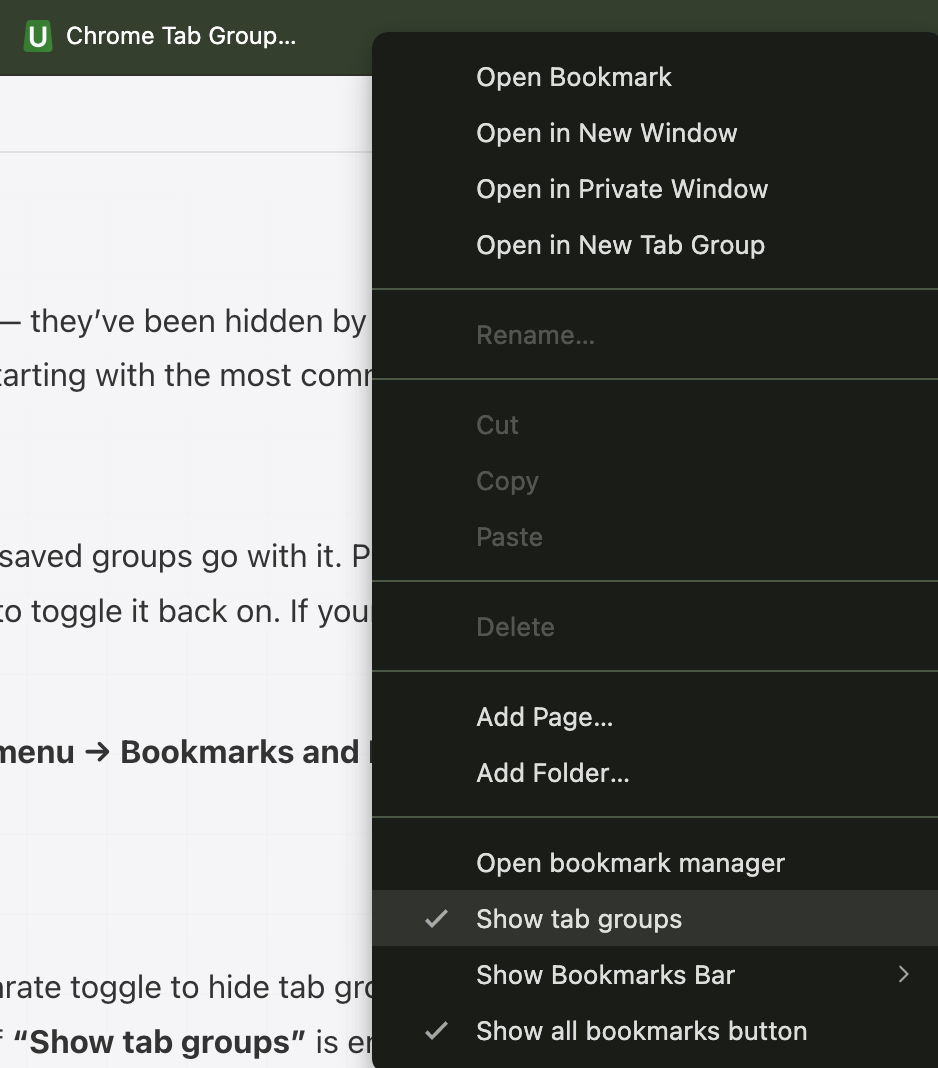
Even with the bookmarks bar visible, Chrome has a separate toggle to hide tab groups from it. Right-click anywhere on the bookmarks bar and check if “Show tab groups” is enabled. If it’s unchecked, your groups still exist — they’re just filtered out of view. Check the box and they’ll reappear.
Your groups are in the overflow, not pinned
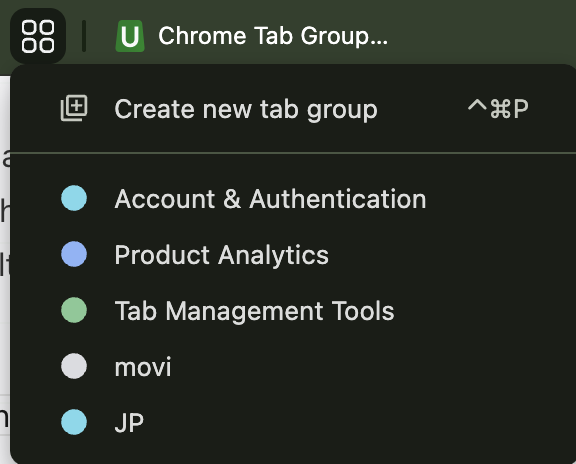
The bookmarks bar has limited horizontal space. Pinned groups show as icons directly on the bar. Unpinned groups are tucked into the overflow dropdown — the small chevron or >> icon at the right end of the bar.
If you have several saved groups, most of them might be hidden in this dropdown. Click it to see your full list.
To keep a group visible at all times, right-click its icon on the bookmarks bar → Pin. Pinned groups stay on the bar regardless of how many bookmarks or other groups you have.
The group was deleted instead of closed
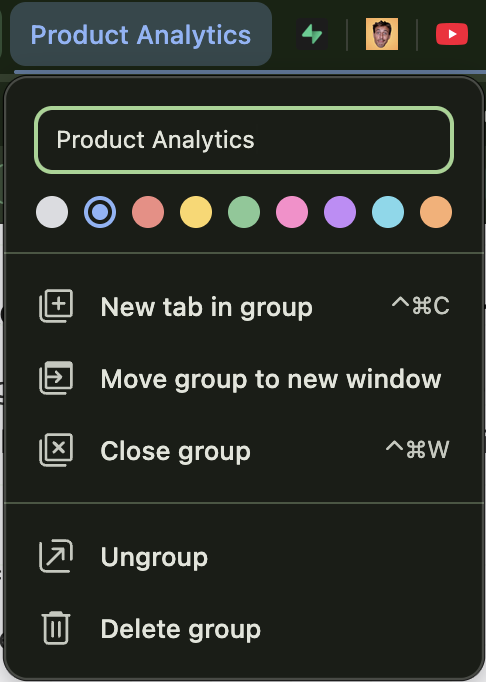
This is the most common cause of groups actually being gone. Chrome has three options when you right-click a group label, and only one of them saves the group:
- Close group — saves the group to the bookmarks bar
- Ungroup — deletes the group, keeps the tabs open
- Delete group — deletes the group and closes all its tabs
If you used “Ungroup” or “Delete group,” the group is gone — it wasn’t saved anywhere. Similarly, if you removed all tabs from a group one by one instead of closing the group itself, the empty group disappears without being saved.
We cover the exact difference between these options below.
Chrome crashed or updated
This is the one scenario where actual data loss can happen, even if you did everything right. Chrome writes saved group data to disk, but not instantly — a hard crash (power loss, Chrome process kill) can happen before that write completes.
Major Chrome version updates occasionally reset saved group metadata. And if you use Chrome Sync across multiple devices, simultaneous edits to the same group can trigger a silent conflict where one device’s version overwrites the other.
This is real, but it’s less common than the visibility issues above. If you’ve checked the bookmarks bar, the “Show tab groups” toggle, and the overflow dropdown and your groups still aren’t there — a crash or update is likely the cause.
How to recover tab groups that are actually gone
If your groups are truly lost — not hidden, not in overflow, genuinely deleted or wiped — the group itself (name, color, structure) cannot be recovered. But the individual tabs inside can usually be found.
- Ctrl+Shift+T (Cmd+Shift+T on Mac) — reopens the last closed window. If the window had tab groups, they sometimes restore intact.
- Three-dot menu → History → Recently Closed — may show the window with your tabs. Windows appear as “X tabs” — clicking “Restore Window” brings them back, occasionally with groups.
- Three-dot menu → History → History page — search for individual URLs by keyword. The group structure is lost, but the pages are there.
For a full walkthrough on recovering lost tabs, see our complete guide to restoring Chrome tabs.
How to properly close and manage tab groups
The way you close a Chrome tab group determines whether it’s saved or gone forever. Chrome gives you three options when you right-click a group label, and they do very different things.
Close group → saves the group
Right-click the group label → “Close group.” This closes all the tabs in the group and saves the group to the bookmarks bar. You can reopen it anytime by clicking its icon on the bar.
This is the correct way to put away a group you want to keep. Think of it as archiving — the tabs are closed to free memory, but the group is preserved.
Ungroup → keeps the tabs, deletes the group
Right-click the group label → “Ungroup.” This removes the group but keeps the individual tabs open in the tab bar. The tabs lose their group assignment — they become regular standalone tabs.
The group itself is gone and not saved anywhere. Use this when you’re done with the grouping but still need the tabs.
Delete group → deletes everything
Right-click the group label → “Delete group.” This removes the group and closes all the tabs inside it. Nothing is saved.
This is the destructive option. Use it only when you’re finished with everything in the group and don’t need any of the tabs.
Summary
- Want to keep the group for later → Close group
- Want the tabs but not the group → Ungroup
- Done with everything → Delete group
How do I keep my tab groups from disappearing?
A few habits to save tab groups in Chrome reliably and stop losing them.
Always use “Close group” to put groups away
Now that you know the difference between Close, Ungroup, and Delete — make “Close group” your default. It’s the only option that preserves the group for later.
Use a tab manager for automatic persistence
Chrome’s built-in group saving has gotten much better since version 131, but it still depends on Chrome’s internal data. For groups you depend on for work, a tab manager stores them outside Chrome’s system entirely — so crashes, updates, and profile corruption can’t reach them.
Uncluttr is a tab manager made to help you organize your workspace. It can group tabs based on context automatically, and keeps them accessible in a vertical tab bar. Backups and crash protection makes sure you never lose a tab or group, even if you close them accidentally.
Pin your important groups to the bookmarks bar
Right-click a saved group on the bookmarks bar → Pin. Pinned groups are always visible on the bar, not buried in the overflow dropdown. This is the simplest way to prevent “where did my groups go?” confusion.
Enable “Continue where you left off”
Open Chrome Settings (three-dot menu → Settings) → scroll to “On Startup” → select “Continue where you left off.”
This reopens your entire previous session — tabs, windows, and groups — every time Chrome starts. It handles normal restarts and shutdowns well. It doesn’t fully protect against crashes or updates that corrupt session data, but it’s a solid baseline.
Quick reference
| Problem | Most likely cause | Fix |
|---|---|---|
| Groups gone from bookmarks bar | Bookmarks bar is hidden | Ctrl+Shift+B to show it |
| Bar visible but no groups | “Show tab groups” is off | Right-click bar → enable it |
| Only see a few groups | Others are in overflow | Click the dropdown, or pin important groups |
| Group vanished after removing tabs | Used “Ungroup” or “Delete” instead of “Close” | Can't recover the group — check History for the tabs |
| Groups gone after crash/update | Session data wasn't flushed | Ctrl+Shift+T, or check History |
| Want groups to survive everything | Chrome's save is good but not bulletproof | Use a tab manager like Uncluttr |