
How to Restore Chrome Tabs (And Stop Losing Them for Good)
How to reopen closed tabs?
To restore tabs you just closed, press Ctrl+Shift+T on Windows and Linux, or Cmd+Shift+T on Mac. This is the fastest way to recover a lost tab.
- Pressing the shortcut repeatedly will reopen closed tabs in reverse order, up to roughly 25 tabs back.
- Right-click the tab bar → “Reopen closed tab” does the same thing if you prefer using the mouse.
- This works for entire windows too — if you accidentally closed a window with 15 tabs in it, the shortcut reopens the full window with all its tabs intact.
How do I find tabs I closed hours or days ago?
If you need to restore Chrome tabs from further back, Chrome’s browsing history has you covered:
- Three-dot menu → History → Recently Closed shows tabs and full windows from your current browsing session. Windows appear as “X tabs” — click one, then “Restore Window” to bring back everything at once.
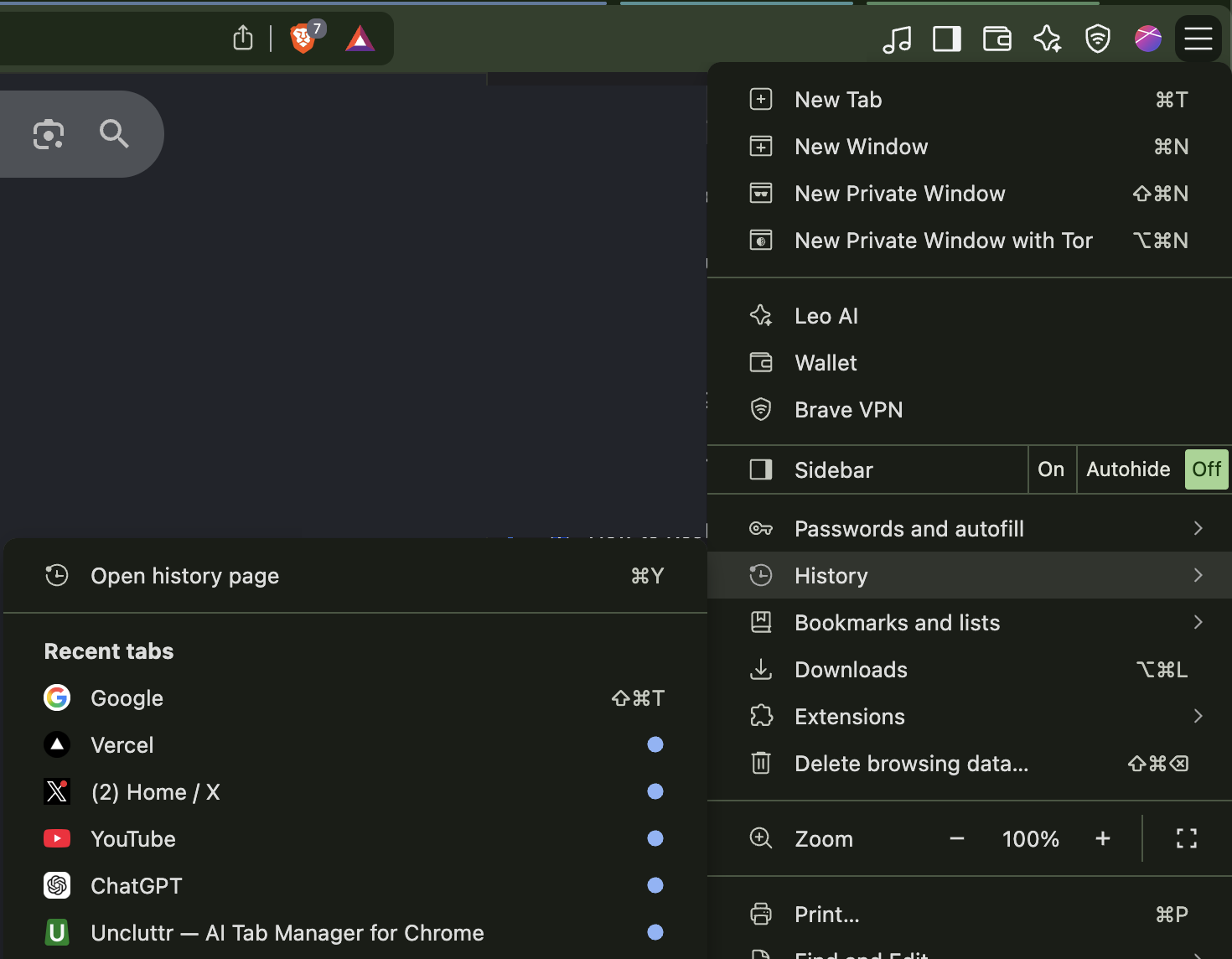
- Three-dot menu → History → History page opens the full browsing history, where you can search by page title or URL.
- You can also navigate directly to chrome://history in the address bar.
- Keyboard shortcut: Ctrl+H on Windows/Linux/ChromeOS, Cmd+Y on Mac.
Chrome keeps browsing history for 90 days by default, so even tabs from weeks ago are recoverable — as long as you haven’t cleared your history.
One thing to note: history recovers individual page URLs only. If those tabs were organized into tab groups, the group names, colors, and structure are not preserved. You get the pages back, but ungrouped. If your tab groups specifically disappeared, that’s a separate issue — we cover why that happens and how to prevent it.
How do I get my tabs back after Chrome crashed?
To restore tabs after a Chrome crash, relaunch the browser and look for the “Restore” prompt — it usually appears automatically. Always accept it.
If the prompt doesn’t show up:
- Try Ctrl+Shift+T (Cmd+Shift+T on Mac) — this can often recover the entire crashed window, including all its tabs.
- If that doesn’t work, open the three-dot menu → History and check Recently Closed to find the last session, you might be able to restore it from there.
Be aware: crash recovery brings your tabs back, but not always perfectly. Chrome may restore the page URLs but lose your tab group assignments — tabs come back ungrouped and potentially out of order. This is a known Chrome limitation. Tab data and group metadata are stored separately, and group data is more fragile during crashes.
It’s also worth knowing that the more tabs you have open, the more likely crashes become in the first place — and the messier recovery gets. Here’s why too many tabs slow you down.
How do I stop losing tabs in the first place?
Now that you’ve recovered your tabs, here’s how to stop losing tabs permanently — so you don’t end up here again.
Enable “Continue where you left off”
The simplest way to restore Chrome tabs after a restart automatically is to enable session restore:
Open Chrome Settings (three-dot menu → Settings) → scroll to “On Startup” → select “Continue where you left off.”
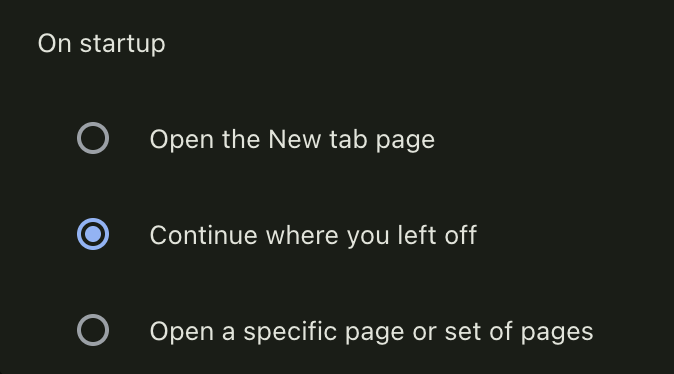
With this enabled, Chrome reopens your entire previous session every time you start the browser — all tabs, windows, and tab groups. This also makes pinned tabs persist across restarts (without this setting, pinned tabs don’t survive closing Chrome).
It’s a solid baseline, but it has real gaps. It doesn’t protect against crashes that corrupt session data, Chrome updates that silently reset your session, or accidentally closing one of several windows — only the last window’s state is fully preserved. For most normal restarts it works; for everything else, you need a backup plan.
Use a tab manager
A tab manager acts like an extra layer over your browser's internal logic. This means it is not affected by Chrome's crashes, updates and profile corruption. Most also adds extra quality of life features like backups or intelligent tools
Uncluttr is one such tab manager. It provides a vertical tab bar, and keeps your tabs, groups and workspaces saved independently of Chrome, allowing for even hundreds of tabs to be kept open with no performance issues and fear of losing them. No manual saving and no hoping that Chrome’s restore prompt fires correctly. It also detects duplicated tabs, automatically puts tabs you don't use to sleep, and groups tabs based on context.
If you often keep a bunch of tabs open, and you want to stop losing them, Uncluttr is a great option. See how Uncluttr compares to other tab managers.
Bookmark tabs you need long-term
For tabs you’ll genuinely need months from now, bookmarks are the most permanent safety net. Right-click any tab → “Bookmark all tabs” saves every open tab to a folder.
Bookmarks survive everything — crashes, reinstalls, Chrome updates — and sync across devices. The trade-off is that they’re messy to manage, lose scroll position and session state, and have no concept of groups or workspaces. They’re for long-term reference, not for organizing your current working session. For day-to-day tab organization, tab groups are a better fit.
Quick reference
| Situation | Fix |
|---|---|
| Just closed a tab | Ctrl+Shift+T / Cmd+Shift+T (repeat for multiple) |
| Need tabs from earlier | Three-dot menu → History → History page |
| Chrome crashed | Accept restore prompt on relaunch, or Ctrl+Shift+T |
| Want tabs to survive restarts | Enable “Continue where you left off” in Settings |
| Want tabs to survive everything | Use a tab manager like Uncluttr |